How to cancel or downgrade iCloud+
On an iPhone with iOS 18.4 or later, open Settings, tap your name, then Subscriptions and iCloud+, and tap Cancel Subscription or See All Plans. The change takes effect when the current billing period ends. Make room or copy your data first, because over the free 5 GB iCloud stops syncing and backing up.


Make room before you cancel
Apple's advice comes before its steps: "Before you downgrade or cancel your iCloud+ plan, download or remove content that exceeds your new storage amount." Every Apple Account gets 5 GB free. If what you store is bigger than the plan you move to, "iCloud won't sync or update your information, and iCloud backups won't complete." Apple's storage page spells out the rest. Your device stops backing up to iCloud, new photos and videos stop uploading to iCloud Photos, iCloud Drive stops staying up to date across your devices, and "you won't be able to send or receive emails with your iCloud email address."
So check how much you use, in Settings on your device or on iCloud.com, before you pick a plan. Apple's storage page also shows how to delete old backups of devices you no longer use.
How to cancel iCloud+ on iPhone or iPad
With iOS or iPadOS 18.4 or later:
- Open the Settings app, then tap your name.
- Tap Subscriptions, then tap iCloud+ under Active.
- To cancel, tap Cancel Subscription. To move to a smaller plan, tap See All Plans and pick one.
On iOS 18 to 18.3 the path is Settings, your name, iCloud, Manage Plan under iCloud+ Features, then Downgrade Options. On iOS 17 and earlier, tap Manage Account Storage where newer versions say Manage Plan. Apple says a blue check next to the new plan confirms the change.
How to cancel iCloud+ on a Mac or a Windows PC
On macOS Tahoe 26 or later:
- Choose the Apple menu, then System Settings.
- Click Apple Account, then iCloud.
- Click Manage Plan under iCloud+ Features.
- Choose Cancel Subscription, or See All Plans to downgrade.
On macOS Sonoma or Sequoia, the same path ends at Downgrade Options. Enter your password and choose a smaller plan, or the free 5GB plan to cancel. In iCloud for Windows, click Manage, then Change Storage Plan and Downgrade Options, and choose the same way. If you no longer have an Apple device, Apple's page links to a way to cancel iCloud+ online.
When it takes effect, and refunds
"If you downgrade or cancel your iCloud+ plan, the change takes effect after your current subscription billing period ends." You keep the larger storage until then, which is the time to finish moving files. On refunds, Apple writes "Partial refunds are available where required by law. If you recently changed your iCloud+ plan, contact Apple within 14 days for a refund."
What you lose besides storage
Dropping to the free plan also ends the extras that come with iCloud+. Apple names "Hide My Email, Private Relay, Apple Invites, and HomeKit Secure Video support." A smaller paid plan keeps them, so if you rely on one of those, downgrade rather than cancel.
Apple One and Family Sharing
Apple One bundles iCloud+ storage with other services, and it treats an existing storage plan differently from the rest. Other separate subscriptions end when Apple One starts billing, "except iCloud+". Apple's storage page sets out three cases. If Apple One includes more storage than your plan, your iCloud+ plan is cancelled with a pro-rated refund. If it includes the same amount, the old plan ends after the trial. If it includes less, you keep both plans and pay for both, and Apple says you can downgrade or cancel the separate one yourself.
A plan someone else in your family pays for is theirs to cancel. Apple's rule for any subscription is that the person whose Apple Account appears on the receipt cancels it, and "You can't cancel a family member's subscription."
The mistake that keeps you paying
Paying for storage twice. A separate iCloud+ plan bigger than the storage in your Apple One bundle keeps billing on its own, and Apple adds the two together rather than replacing one with the other. Look for both lines in Settings, under Subscriptions. Then decide whether you need the extra space or only the bundle, and set a reminder before the next renewal while you make room.
Keeping a plan? Keep the renewal in view
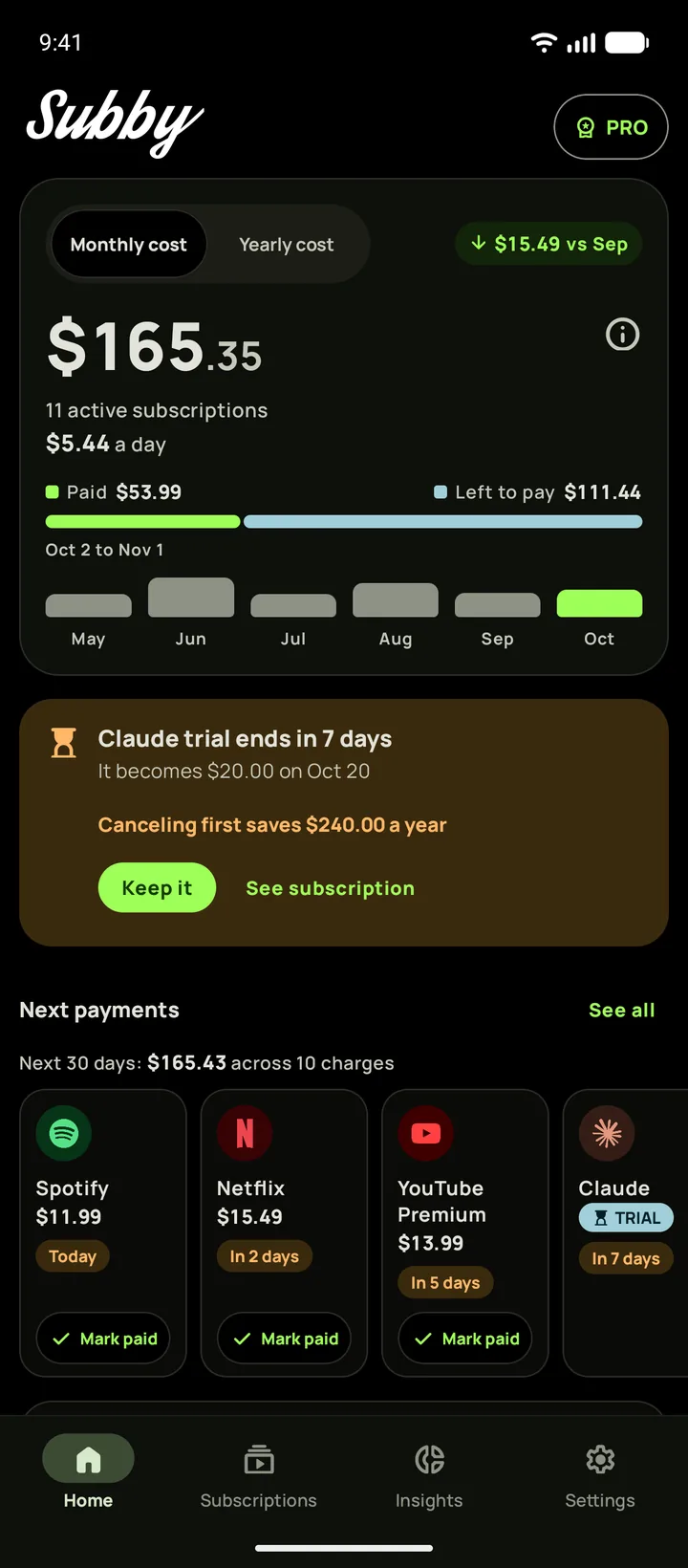
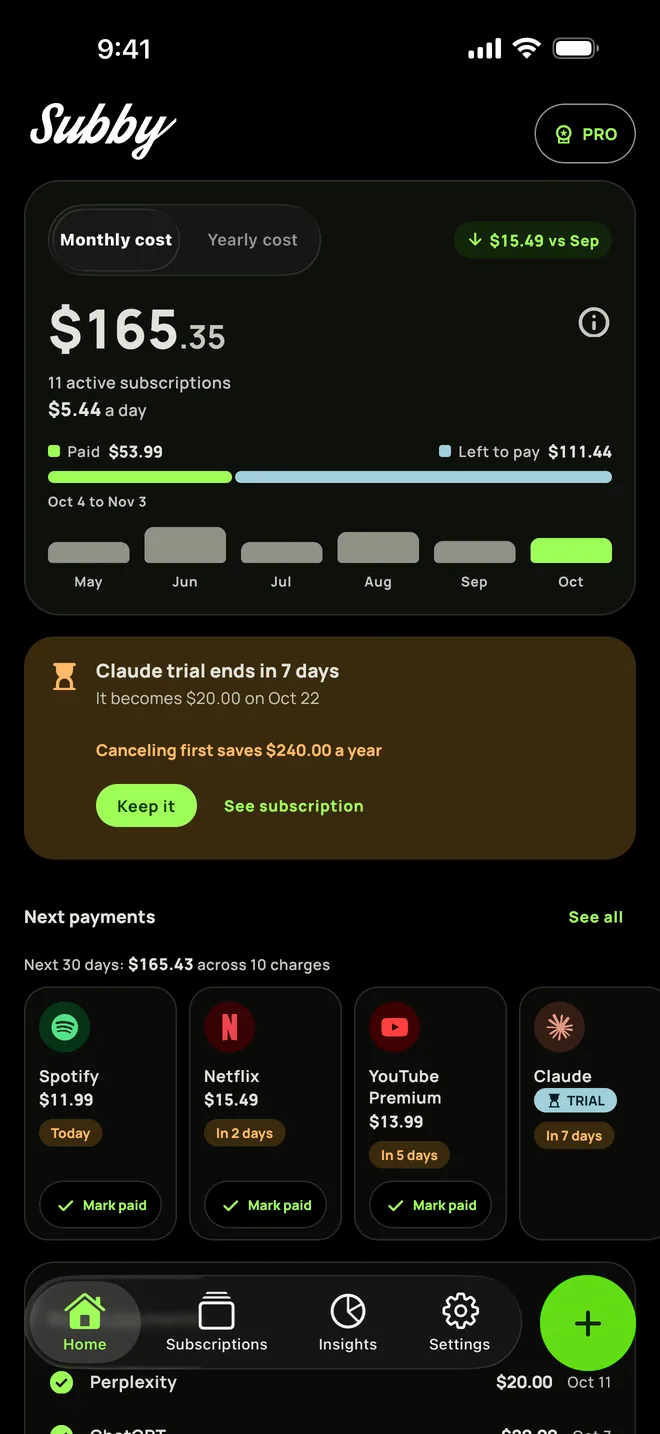
Put iCloud+ in Subby with its renewal date and the plan you are on, and the reminder arrives before the charge. As the date gets close, Home lists it among the next payments. Free to use, with ads, and no account or bank login.


Free · No account · No bank login