How to get a refund for an app subscription
Ask the party that charged you: Apple at reportaproblem.apple.com, Google Play through your order history, or the app itself if it bills you directly. Apple says to allow 24 to 48 hours for an update, and Google may refund within 48 hours of the purchase. Neither store promises a refund, and Apple lists cancelling the subscription as a separate step.


Ask whoever took the money
A refund comes from the party that charged you, and each one has its own request form. Apple's page says "Some purchases from the App Store, iTunes Store, Apple Books, or other Apple services might be eligible for a refund." Google says "Google doesn't give refunds for most Google Play purchases." A request is only a request.
| Who billed you | Where you ask | What to know |
|---|---|---|
| Apple (the App Store charged you) | reportaproblem.apple.com | Allow 24 to 48 hours for an update |
| Google Play (the Play Store charged you) | Your Google Play order history, then Report a problem | Within 48 hours you may get a refund. After that, ask the developer |
| The app itself (you paid on its website) | The app's own support or billing page | Apple says it can't support purchases made outside its billing |
Not sure who billed you? For an Apple charge, Apple suggests searching your email for the words "receipt from Apple" or "invoice from Apple". The receipt shows which Apple Account made the purchase. For Google Play, look in your order history. A charge that appears in neither came from someone else, and the app's own payment email says who.
How to request a refund from Apple
- Sign in to reportaproblem.apple.com with the Apple Account that paid.
- Choose I'd like to, then Request a refund.
- Choose the reason for the refund, then choose Next.
- Choose the subscription, then choose Submit.
Then wait. Apple says to allow 24 to 48 hours, and that "contacting Apple by phone or chat won't help speed up your request". Check on it at the same page with Check Status of Claims, then Pending. An approved refund returns to the payment method you used, and a card statement can take up to 30 days to show it. Apple also warns that you may lose access to refunded items.
Can't find the charge? It may sit on another Apple Account, so match it to the receipt in your email and sign in with that account.
How to request a refund from Google Play
Google splits the answer at 48 hours. Inside it, you may be able to get a refund. After it, "Contact the developer to troubleshoot and find out if you can get a refund." If your purchase isn't under the Request a refund link on Google's help page, use the website:
- Go to play.google.com and click your profile picture at the top right.
- Click Payments & subscriptions, then Budget & order history.
- For the order you want to return, click Report a problem.
- Select the option that describes your situation, complete the form and say you'd like a refund.
- Click Submit.
Google usually decides within a day, and says it can take up to four. By Google's timeline, a card refund takes 3 to 5 business days, sometimes up to 10.
The policy adds that "If a refund is issued, you'll lose access to the item." A charge you didn't make, and nobody you know made, is a different route: Google asks you to report unauthorized charges within 120 days of the transaction. Google keeps separate rules for the European Economic Area and the United Kingdom.
Free trials
A trial that hasn't charged you has nothing to refund. Apple's advice is "cancel it at least 24 hours before the trial ends." If it already turned into a paid plan, ask as soon as you see the charge, since Google's line is 48 hours. See the trial guide for when to cancel.
When the app bills you directly
Apple and Google can only refund what they charged. For a subscription paid outside Apple's billing, Apple's page says to "contact the developer for billing support or a refund. Apple is unable to provide support for these purchases."
- Find the receipt or payment email from the app. It names who charged you and when.
- Read the app's own help center for its refund rules. Each service writes its own, as the ChatGPT and Duolingo guides show.
- Write to its support from the account email with the date of the charge, the last four digits of the card and one sentence on why. Never send a full card number.
Your card issuer is the last step
Ask the app in writing, and give it time to answer. If it refuses or goes silent, your card issuer has its own process for disputing a charge. Its rules and time limits are the issuer's to state, so read its own page or call the number on the card. Bring the receipts and your messages with the app.
The mistake that keeps you paying
Getting the refund and leaving the subscription running. A refund deals with a charge that already happened, and cancelling is a separate step. Apple puts it plainly: "If you were charged for a subscription that you no longer want, you can also cancel the subscription." Do both on the same day, in your iPhone subscriptions or in Google Play. On Google Play, deleting the app doesn't do it either, because Google says "When you uninstall the app, your subscription won't cancel." Then set a reminder before the next renewal.
Keeping it? Keep the renewal date
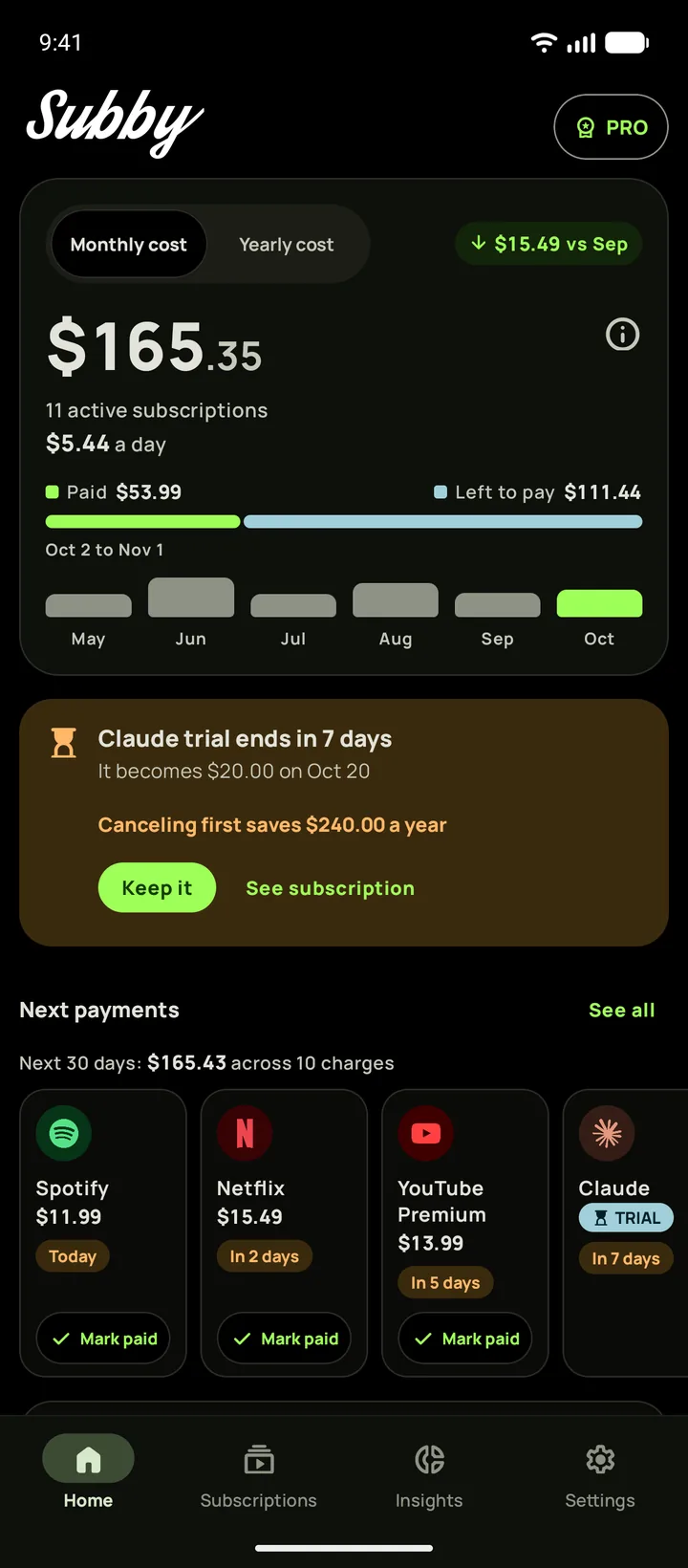
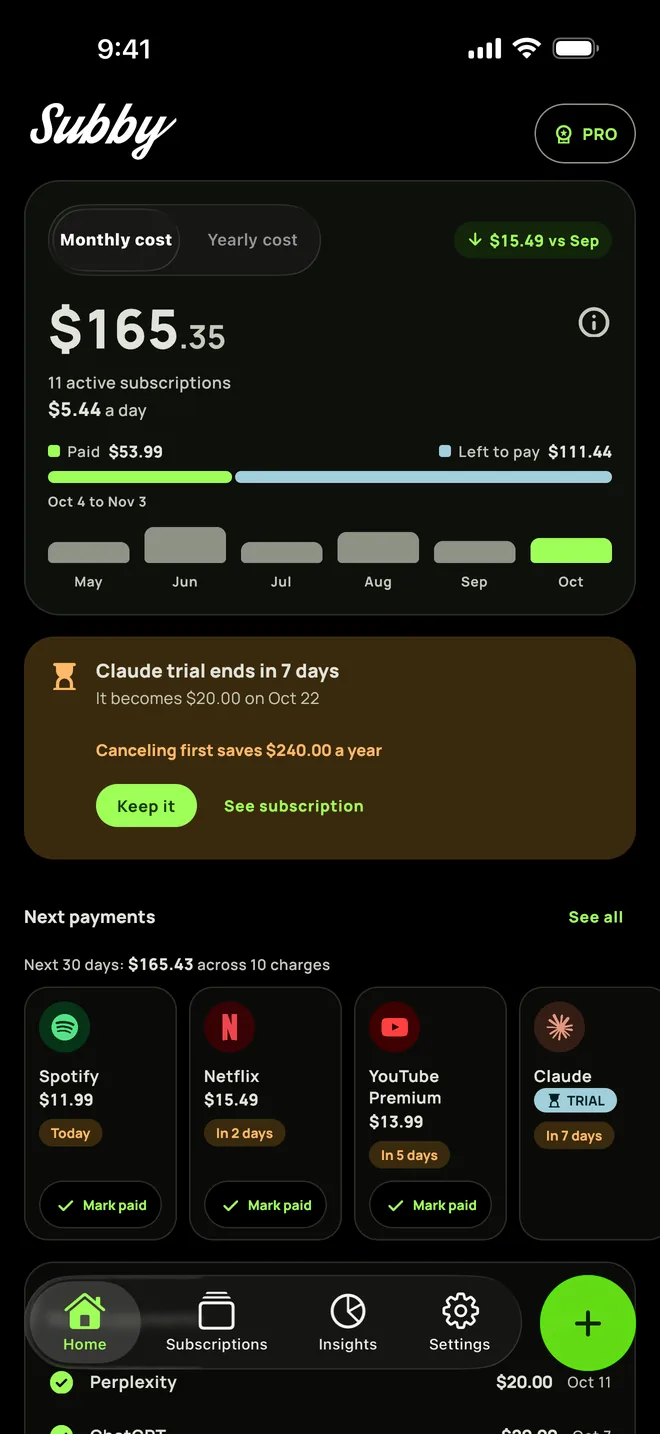
Put the subscription in Subby with its renewal date, or the day its trial ends, and the reminder arrives before the charge, so you can cancel in time instead of asking for money back. Free to use, with ads, and no account or bank login.
Free · No account · No bank login
Sources
- Apple Support. Request a refund for apps or content that you bought from Apple
- Apple Support. Check the status of a refund for apps or content that you bought from Apple
- Apple Support. About purchases not billed through the App Store or Apple In-App Purchase
- Apple Support. Cancel a subscription from Apple
- Google Play Help. Learn about Google Play refund policies
- Google Play Help. Request a refund on Google Play
- Google Play Help. Apps, games, & in-app purchases (including subscriptions) refund policies
- Google Play Help. Refund timelines for Google Play purchases
- Google Play Help. Cancel, pause, or change a subscription on Google Play