How to cancel your Zoom subscription
Sign in to the Zoom web portal, click your profile picture, then Plans and billing, and click Cancel Plan. If Apple or Google Play bills you, cancel in their subscription list, because Zoom cannot do it for you. Paid features last to the end of the billing term, and the account then changes to Basic.



Start with who bills you
A paid Zoom plan, Zoom Workplace Pro included, has one cancel button, and it works for plans Zoom bills itself. Zoom's help says "Zoom Support cannot cancel or refund subscriptions managed by third-party billing platforms."
| Who bills you | Where the cancel button lives |
|---|---|
| Zoom (you bought from Zoom) | Zoom web portal → Plans and billing |
| Apple (you bought through the App Store) | iPhone or iPad Settings → your name → Subscriptions, or the App Store on a Mac |
| Google Play | Play Store app → Account → Payments & subscriptions → Subscriptions |
| A direct sales quote, a reseller or another organization's account | Your Account Executive or Zoom Support, the reseller that bills you, or your account administrator |
Not sure which? Zoom's cancel steps cover only a plan bought directly from Zoom. Plans and billing in the web portal shows your plans and renewal dates.
How to cancel Zoom in the web portal
You need to be the account owner, an admin, or a user with a custom role that has billing privileges.
- Sign in to the Zoom web portal with that account.
- Click your profile picture or initials, then click Plans and billing.
- Locate the plan you want to cancel, then click Cancel Plan.
- Confirm the cancellation.
Zoom sends a confirmation email, and the plan shows pending cancellation. Add-ons are canceled separately, and before the base plan. If Cancel Plan is missing or grayed out, contact your Account Executive or use the Zoom Virtual Agent for Chat and type "cancel". Unpaid invoices can also block it, so pay the balance and try again.
Pause a Workplace Pro plan instead
A Zoom Workplace Pro plan billed monthly with 3 or fewer paid licenses can pause for up to 3 months at a time instead of canceling. While paused, "your account will have access to Basic (free) features." A plan bought through Google Play can only be canceled.
How to cancel Zoom on iPhone, iPad or Mac
Apple manages a plan bought through the App Store: "Zoom cannot cancel or manage subscriptions billed by Apple." The steps match the ones you use to cancel any subscription on iPhone:
- Open the Settings app.
- Tap your name.
- Tap Subscriptions.
- Tap Zoom.
- Tap Cancel Subscription, scrolling down if you need to.
On a Mac, open the App Store and click your name at the bottom of the sidebar. On the page that appears, click your name, then Subscriptions. Click the Zoom subscription, then Cancel Subscription. A red expiration message instead of a Cancel button means it is already canceled.
How to cancel Zoom on Android
"You cannot cancel a Google Play-billed Zoom subscription from your Zoom account, Zoom web portal, or through Zoom Support." Sign in with the Google account that paid, then:
- Open the Google Play Store app.
- Tap the Account icon in the upper-right corner.
- Tap Payments & subscriptions, then Subscriptions.
- Find the Zoom subscription and tap Cancel subscription.
- Follow the onscreen instructions.
The same list holds every app you pay for through Google Play.
What happens after you cancel
Canceling stops the renewal, not the plan. Zoom says "your paid services remain active until the end of your billing term." After that, "Your account automatically changes to a Basic account after the subscription expires." Cloud recordings are "available for 30 days, then permanently deleted and unrecoverable" once the paid term ends, so download what you want to keep. Change your mind before it takes effect, and Reactivate on the Plans and billing page restores the plan.
Refunds and trials
"Canceling your plan does not automatically generate a refund." Zoom Support can't refund a plan a store bills. On an App Store trial, Apple says "cancel it at least 24 hours before the trial ends." On a Google Play trial, you may keep using it until the last day of the trial.
Deleting the app or the account
Deleting the app does not cancel the plan. Zoom's Google Play page says "Deleting the Zoom mobile app does not cancel your subscription." Deleting the account needs a free Basic account, so a paid one has to cancel first and wait until the current billing cycle has ended.
The mistake that keeps you paying
Canceling in the wrong place. Zoom cannot cancel a plan Apple or Google Play bills, so the store keeps charging. An active add-on or an unpaid invoice can also block the cancellation, and "Zoom subscriptions renew automatically at the end of each billing cycle unless canceled before the renewal date." Note the renewal date and set a reminder before the next charge.
Keeping Zoom? Keep the renewal date
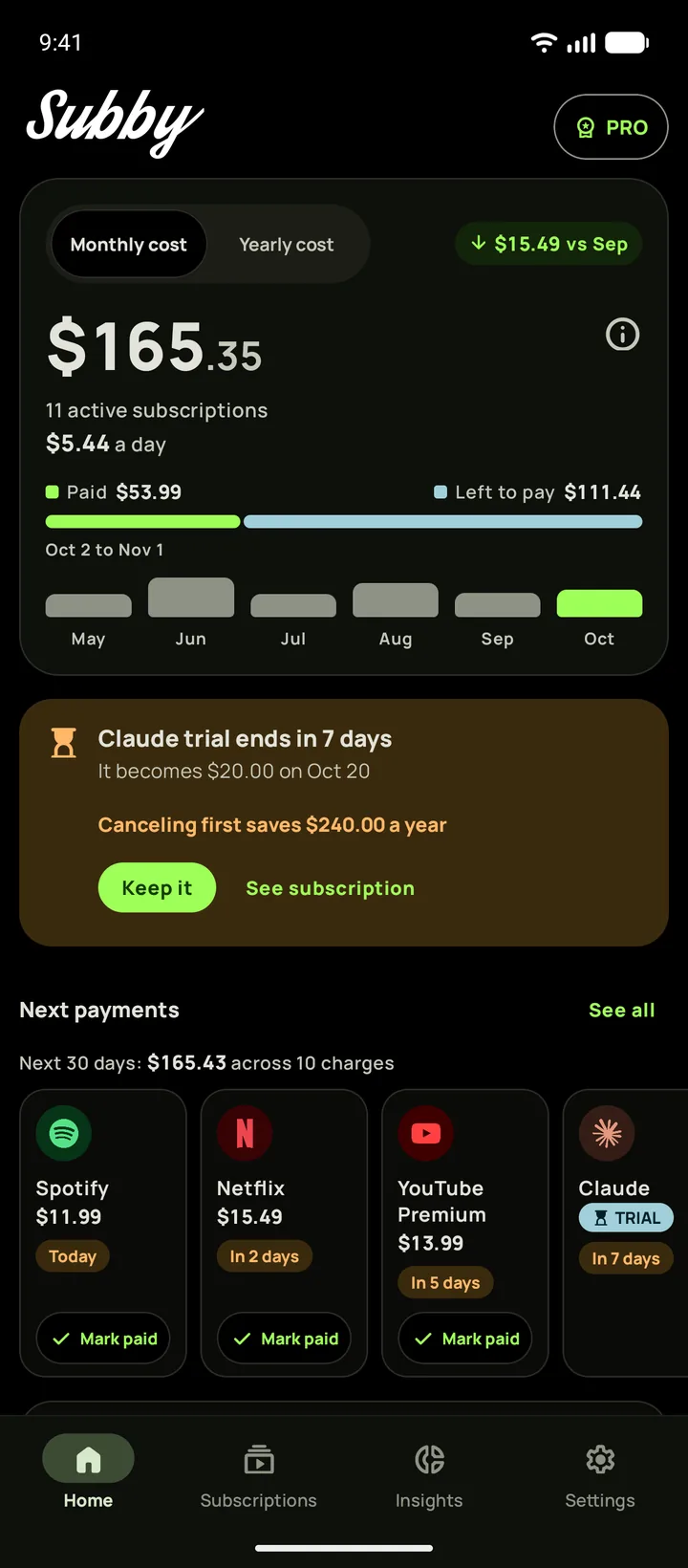
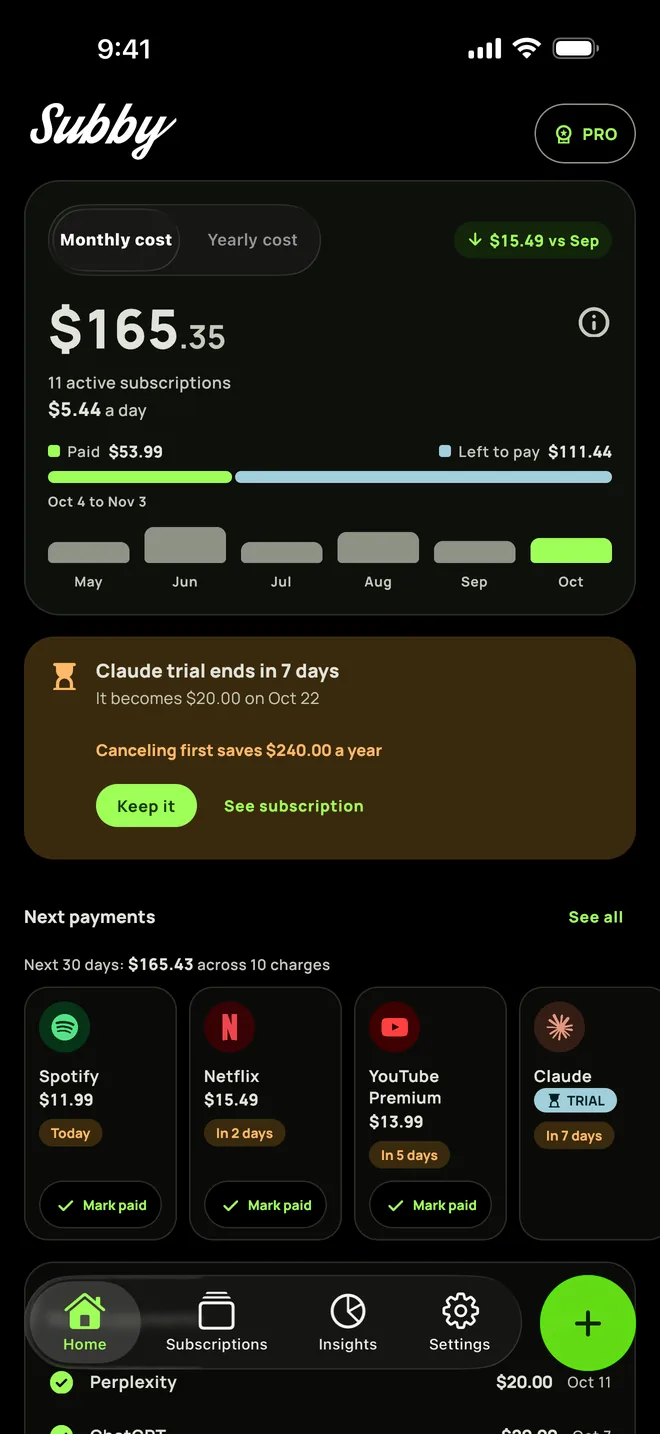
Put Zoom in Subby with its renewal date, and the reminder arrives before the charge, with time to cancel in the right place. Free to use, with ads, and no account or bank login.
Free · No account · No bank login
Sources
- Zoom Support. Canceling your Zoom subscription
- Zoom Support. Troubleshooting Zoom subscription cancellation or renewal charges
- Zoom Support. Canceling a Zoom subscription on the Apple App Store
- Zoom Support. Canceling a Zoom subscription purchased through Google Play
- Zoom Support. Pausing and resuming your Zoom Workplace Pro subscription
- Zoom Support. Deleting your Zoom account
- Apple Support. Cancel a subscription from Apple
- Google Play Help. Cancel, pause, or change a subscription on Google Play